How to Use Meshy, Tripo AI, and Rodin Gen-2.5 for Game Assets, Character Models, and Product Visualization
TL;DR
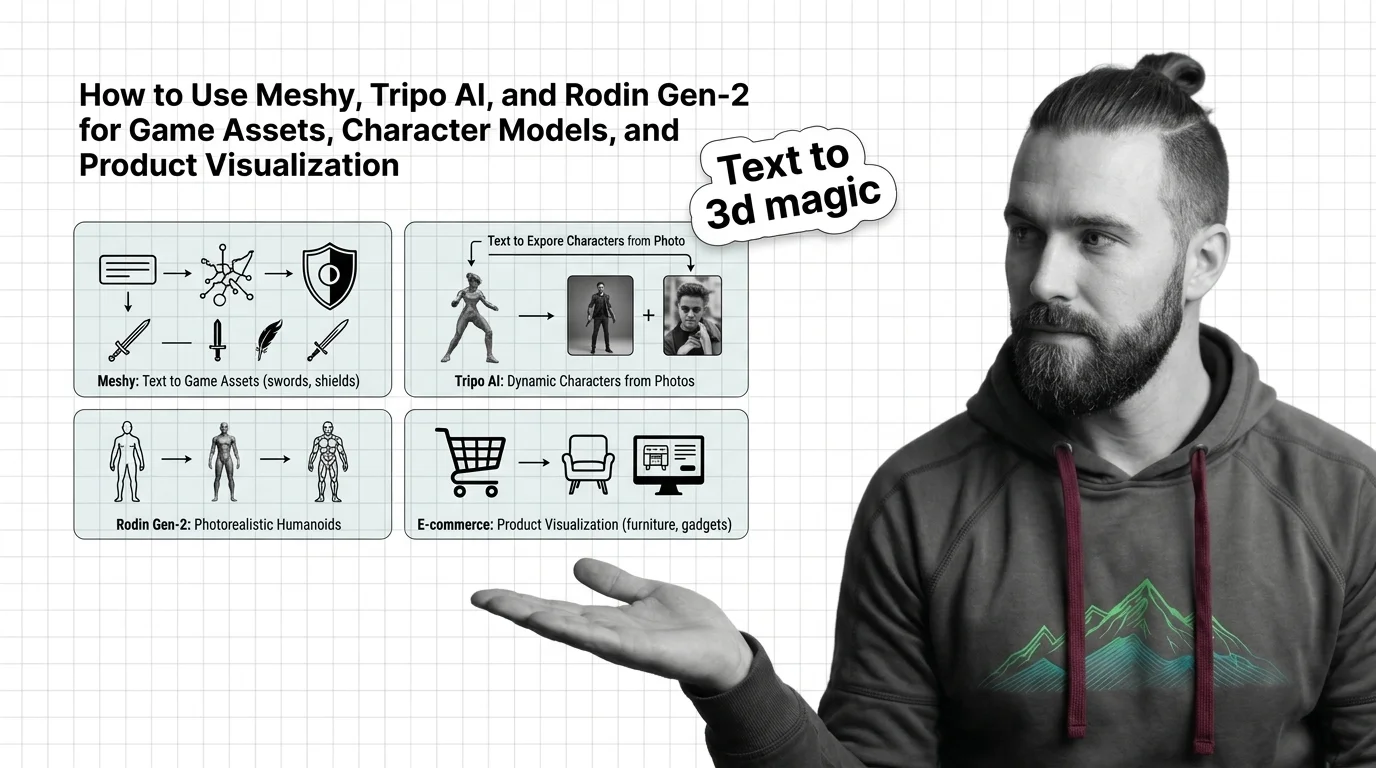
- Tool choice is a constraint decision, not a quality ranking. Meshy for game export pipelines, Tripo for rig-ready characters, Rodin for high-fidelity product renders.
- Your prompt is not the full specification. Polygon budget, texture channel, pose, and export format must be stated explicitly — or the tool will guess.
- Validate against the destination, not the preview. What looks correct in-browser often fails on import into Unity, Blender, or an e-commerce renderer.
A developer types “fantasy warrior in plate armor” into a Text-to-3D tool, downloads the GLB, drags it into Unreal, and the mesh has 600,000 faces, no rig, and metallic channel baked into the albedo. Three hours of Blender cleanup later, the asset is barely usable. The prompt wasn’t wrong. The specification was.
Text-to-3D tools in 2026 — Meshy, Tripo AI, Rodin Gen-2.5 — are good enough to replace early-stage asset sourcing for most studios. But each tool makes different default decisions about polygon density, texture channels, and rigging. If your brief doesn’t state the constraints, those defaults become your problem at import time.
This guide treats each tool as a specification target. Before you generate anything, you define what “done” means for your pipeline — polygon budget, PBR Materials channels, rig requirements, export format — and then you pick the tool that delivers those defaults with the least friction.
Before You Start
You’ll need:
- Access to Meshy (Free tier: 100 credits/month; Pro: $20/month, 1,000 credits), Tripo AI (Free: 200 credits/month), or Rodin Gen-2.5 (Free: pay-per-credit at $1.50/credit) — Meshy’s pricing page, Tripo’s pricing page, Hyper3D’s pricing page
- A working understanding of Multiview Diffusion and how it drives geometry quality
- Familiarity with Image-to-3D and 3D reconstruction so you know when a reference image improves output
- A clear polygon budget and a destination: game engine, render pipeline, or e-commerce viewer
This guide teaches you: how to match tool capabilities to your output contract before you generate a single asset.
The Asset That Looked Done
You got a beautiful preview. High-resolution PBR textures. Clean silhouette. You export GLB and drop it into Unity.
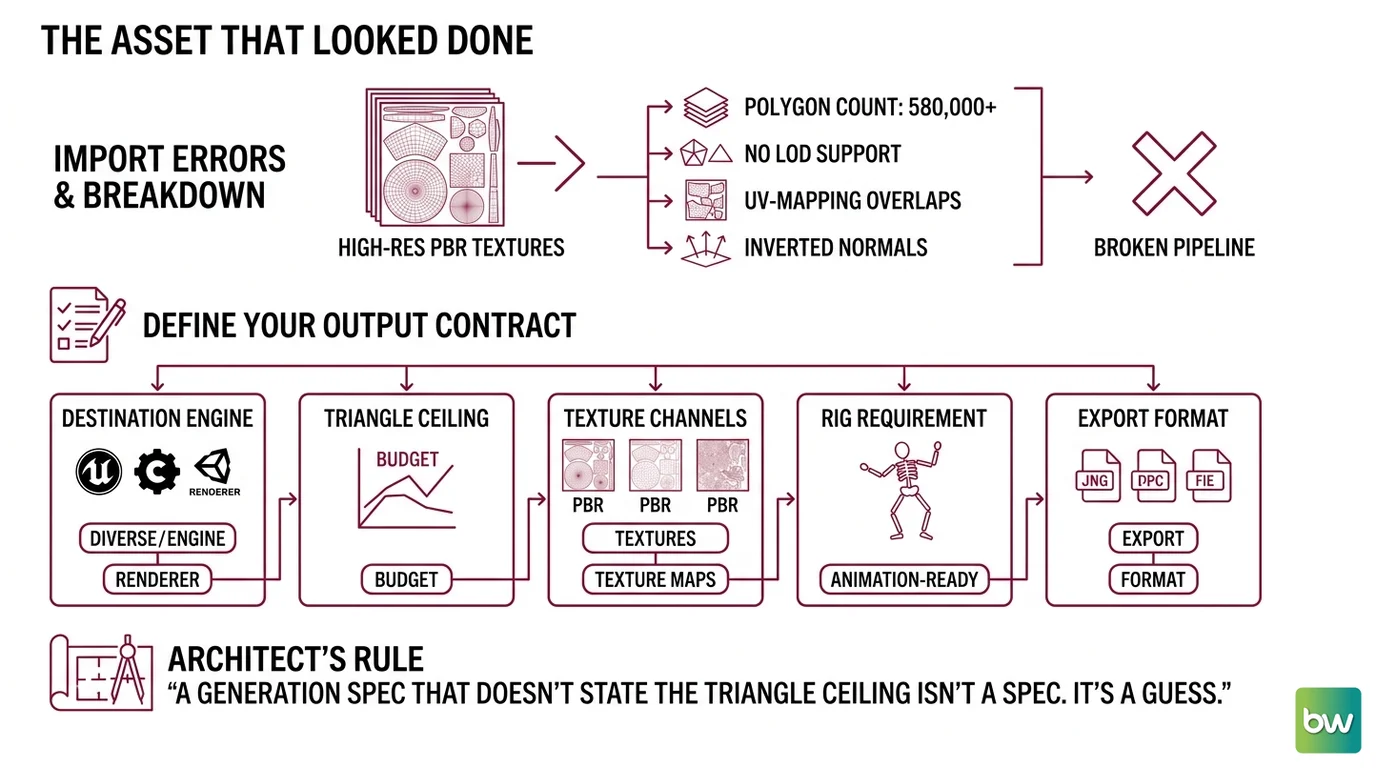
Import errors. Polygon count sits at 580,000 — no LOD support at that density. The UV Mapping overlaps at the seams. Normals are inverted on the shield. You didn’t specify the polygon budget. You didn’t specify the export mode. The tool made reasonable guesses, and those guesses broke your pipeline.
This happens every time you treat the prompt as the full specification. It isn’t.
Step 1: Define Your Output Contract
Before you open any tool, write down three things: what the asset goes into, what polygon ceiling it has, and whether it needs to move.
The destination changes everything. A game asset hitting a real-time engine at target frame rate has a hard triangle budget — background props need far fewer triangles than hero characters, and both are a fraction of what a product visualization renderer can handle. A product visualization asset for e-commerce only needs to look right in a WebGL viewer or a photo renderer, so polygon count is secondary to texture fidelity. A character model for a cinematic or animated sequence needs a skeleton and blend shapes — geometry that a rig can drive without artifacts.
Define your contract:
- Destination engine or renderer — Unity, Unreal, Blender Cycles, Shopify 3D Viewer, or custom WebGL
- Triangle ceiling — hard limit from your performance budget
- Texture channels required — albedo only, or full PBR (albedo + normal + metallic + roughness)
- Rig requirement — static prop, posed character (A-pose or T-pose), or animation-ready skeleton
- Export format — GLB for web and engine, FBX for rigged animation, OBJ for universal import, USDZ for Apple AR
Without this contract on paper, you’re generating to a vague brief. The tool fills the gaps. Your import breaks.
The Architect’s Rule: A generation spec that doesn’t state the triangle ceiling and the export format is a napkin sketch. The tool will make confident guesses. Write the contract first.
Step 2: Match the Tool to the Contract
Each tool has a different default bias. Understanding it lets you choose once, instead of regenerating three times.
Meshy AI (current model: Meshy 6) is optimized for game-ready export. It generates up to ~600K faces in Standard mode, but the targeted useful range is 1K–300K triangles with auto-generated, non-overlapping UV Mapping (Meshy Docs). Texture output is 2K–4K PBR with albedo, normal, metallic, and roughness channels baked separately. Generation takes roughly one minute per asset. The export pipeline ships 7 formats: FBX, OBJ, GLB, USDZ, STL, BLEND, 3MF — and direct integrations for Unity, Unreal Engine, Blender, and Godot mean you can import without format conversion. If your contract says “game asset, engine-ready, PBR textures, low poly option,” Meshy is the right starting point.
Tripo AI (current model: Tripo 3.1, 200 billion parameters) is the fastest generator in this set — roughly 8 seconds per model (Tripo AI Docs). Its differentiated feature is AI auto-rigging: it generates rigs for humans, quadrupeds, and stylized or mechanical characters, and exports with skeleton in FBX and GLB. If your contract says “animation-ready character, needs a skeleton, connects to Mixamo or Maya,” Tripo is the right pick. The Free tier gives 200 credits per month, non-commercial only, storing up to 10 models. Pro is $19.90/month with 3,000 credits and commercial use rights (Tripo’s pricing page).
Rodin Gen-2.5 (current version, launched May 26, 2026) trades generation speed for raw polygon fidelity. Raw output reaches 10M+ polygons, with a Smart Low-Poly mode that optimizes for real-time use (Press Advantage). Generation tiers run from ~4 seconds for an ultra-fast draft to 80 seconds for maximum quality. The 10 billion parameter model and the ChatAvatar feature — which accepts text or a reference image to generate photorealistic human faces with animation-friendly topology — make this the right tool when your contract says “product hero shot, 4K textures, highest geometric detail” or “realistic human face for a digital human pipeline.” The Business plan ($120/month or $96/month annual) unlocks 4K textures and API access. Note: the article slug references Gen-2, but Gen-2.5 is the current live default as of May 2026 (Hyper3D Blog).
Context checklist — fill this before generating:
- Triangle ceiling: ______
- Texture resolution required: 2K / HD / 4K
- Rig needed: none / A-pose / T-pose / skeleton
- Export format: FBX / OBJ / GLB / USDZ / BLEND
- Destination: Unity / Unreal / Blender / web viewer / render pipeline
- Reference image available: yes / no (Image-to-3D often beats text-only for product assets)
The Spec Test: If your checklist has any blank fields, the tool will fill them with defaults optimized for its most common use case — not yours. Fill every field before you generate.
Step 3: Sequence the Generation
Order matters. Get the geometry right before you care about textures. Get textures right before you export to engine.
Generation order:
- Draft pass first — Use the fastest quality tier to check silhouette and topology. Don’t generate at max quality on the first attempt. A 4-second Rodin draft or a quick Meshy preview costs almost nothing. Get the shape right.
- Prompt refinement — Adjust the text description based on the draft. Add pose specification if the tool supports it (Meshy: None, A-Pose, T-Pose, Custom). Add style keywords that help the Score Distillation Sampling process converge on the right surface.
- Full quality generation — Once the draft shape is correct, generate at the quality tier that matches your contract. For Meshy, this means specifying the target polygon range in your generation settings. For Rodin, this means selecting the right quality tier (9, 20, 40, or 80 seconds).
- Texture inspection before export — Review PBR channels individually. The normal map needs to encode surface detail that matches the mesh. Metallic and roughness maps need to be in the expected range for your renderer. A broken normal map looks fine in-browser and breaks in engine.
For each generation pass, specify:
- What the asset is (inputs: text prompt + reference image if available)
- What the output looks like (geometry target, texture channels, pose)
- What it must NOT do (e.g., “do not auto-rig” if you’re exporting a static prop and want a clean mesh)
- How failure looks (excess polygon count, UV seam overlap, missing texture channel)
The NeRF and Gaussian Splatting methods that powered earlier text-to-3D research are largely abstracted away in these tools — you don’t control reconstruction method directly. What you control is quality tier, polygon target, and texture resolution. Those three levers give you most of the control you need.
Step 4: Validate Against the Destination
The preview in the tool’s web UI is not your validation gate. The import into your destination engine or renderer is.
Validation checklist:
- Polygon count — failure looks like: Unity profiler showing unexpected draw calls, engine dropping to unacceptable frame rates, LOD system unable to downsample
- UV seams — failure looks like: visible seam lines in-engine even with correct normal maps, texture stretching at joins. Meshy auto-generates non-overlapping UV layouts — verify the seam placement doesn’t fall on visible surface areas.
- PBR channel correctness — failure looks like: the mesh looks flat or plastic in engine even with a normal map imported. This usually means the metallic or roughness channel is baked into the albedo. Inspect each exported texture file separately.
- Rig validity (character models) — failure looks like: mesh deforms incorrectly on skinning test, bone influences overlap in unexpected areas, fingers collapse on grip poses. Tripo’s auto-rig exports with skeleton in FBX and GLB — test with a basic animation before building on top of it.
- File size and format — failure looks like: GLB rejected by the web viewer, USDZ not rendering in Apple AR Quick Look, FBX losing bone hierarchy on import to Maya
Common Pitfalls
| What You Did | Why the Output Failed | The Fix |
|---|---|---|
| Prompted without a polygon budget | Tool defaults to maximum quality (~600K faces in Meshy Standard) | State your triangle ceiling in the generation settings before the first pass |
| Exported GLB without checking texture channels | PBR roughness and metallic baked into albedo, renderer interprets it as flat color | Open each exported texture file before import; verify channel separation |
| Used Tripo for a static prop | Auto-rig adds skeleton overhead to a mesh that doesn’t need it | Disable auto-rigging for static props; use Tripo when you actually need a skeleton |
| Skipped the draft pass | Generated at max quality on a prompt that had wrong topology, wasted credits | One fast draft reveals silhouette issues for near-zero cost |
| Treated Free tier as commercial | Meshy Free ships CC BY 4.0 license; Tripo Free is non-commercial only | Check license terms before using outputs in shipped products |
| Ignored Rodin Gen-2.5 versioning | Article slug says “Gen-2” but Gen-2.5 is the current live default since May 2026 | Use the current model; Gen-2 is available but Gen-2.5 is the production default |
Pro Tip
Your output contract is reusable. Once you’ve written the triangle ceiling, texture channels, rig requirement, and export format for a given use case — game asset, e-commerce render, animation character — save that as a named spec. Every future generation for that use case starts from the same contract. The prompt changes. The spec doesn’t. That’s how you stop regenerating the same asset type three times every sprint.
Frequently Asked Questions
Q: How to create game-ready 3D assets from a text prompt with Meshy AI? A: On Meshy’s text-to-3D pipeline, start by setting your polygon target before generating — the useful range is 1K–300K triangles, with auto-generated non-overlapping UV maps. Select your pose (A-Pose or T-Pose for characters, None for props) and export in GLB or FBX for Unity and Unreal. Each generation costs 20 credits (Meshy Help Center). One edge case: Meshy 6 is the default model — Meshy 4 and 5 are still selectable, but unless you have a reason to use an older model, stay on 6. The Free plan’s CC BY 4.0 license requires attribution in shipped products — upgrade to Pro ($20/month) for commercial use without attribution.
Q: How to generate photorealistic 3D human characters with Rodin Gen-2? A: For human characters, use Rodin Gen-2.5’s ChatAvatar feature — it accepts a text description or a reference image and generates a face with PBR textures and animation-friendly topology (Hyper3D). Raw output can exceed 10M polygons; use Smart Low-Poly mode for real-time targets. 4K textures require the Business plan ($120/month). Watch for the generation speed trade-off: ultra-fast draft runs in ~4 seconds, maximum quality takes up to 80 seconds. For a facial scan with a reference image, the Image-to-3D path outperforms text-only on likeness accuracy.
Q: How to use text-to-3D for product visualization and e-commerce in 2026? A: Product visualization needs high texture fidelity more than low polygon count — the asset renders in a controlled viewer, not a real-time game engine. Rodin Gen-2.5 at a standard quality tier (20–40 seconds) gives the geometry detail needed for hero shots. For product lines where you need many variants quickly, Tripo’s 8-second generation speed makes it practical for batch workflows. Export USDZ for Apple AR Quick Look and GLB for web viewers. One gap: enterprise pricing for batch API access isn’t publicly listed — contact each vendor directly for volume pricing.
Your Spec Artifact
By the end of this guide, you should have:
- An output contract: triangle ceiling, texture channels (albedo-only vs. full PBR), rig requirement, export format, and destination engine or renderer
- A tool selection mapped to your use case: Meshy for game export pipelines, Tripo for animation-ready characters with auto-rig, Rodin for high-fidelity product or photorealistic human assets
- A validation checklist against your destination: polygon count, UV layout, PBR channel separation, rig validity, and file format compatibility
Your Implementation Prompt
Paste this into your generation workflow (Meshy’s settings panel, Tripo’s generation UI, or Rodin’s quality selector) to encode the decisions from this guide:
Text-to-3D Generation Specification

ASSET DESCRIPTION: [describe the object, character, or product in plain terms]

OUTPUT CONTRACT:
- Destination: [Unity / Unreal / Blender Cycles / WebGL viewer / AR Quick Look]
- Triangle ceiling: [your hard polygon limit, e.g., 15,000 triangles for a hero character]
- Texture resolution: [2K / HD / 4K — match to your plan tier]
- Texture channels required: [albedo only / albedo + normal + metallic + roughness]
- Rig requirement: [none / A-Pose / T-Pose / animation skeleton]
- Export format: [FBX / OBJ / GLB / USDZ / BLEND]

GENERATION SEQUENCE:
1. Draft pass at lowest quality tier — verify silhouette and topology before full generation
2. Prompt refinement based on draft output
3. Full generation at [your chosen quality tier]
4. Inspect each PBR texture channel separately before export

TOOL SELECTION:
- Game asset with engine export → Meshy 6 (FBX/GLB, PBR auto-bake, Unity/Unreal direct import)
- Animation-ready character → Tripo 3.1 (auto-rig, FBX/GLB with skeleton, Mixamo-compatible)
- Product hero shot or photorealistic face → Rodin Gen-2.5 (high poly, ChatAvatar for faces, 4K on Business plan)

VALIDATION GATE (check before reporting done):
- Polygon count is within triangle ceiling
- UV layout has no overlapping islands at visible seam lines
- Each PBR channel is a separate texture file, not composited into albedo
- If rigged: bone influences tested with a basic animation in destination tool
- File imports cleanly into [destination] without errors
Ship It
You now have a framework for treating text-to-3D as a specification problem, not a prompt lottery. Meshy for game pipelines. Tripo when the character needs to move. Rodin when fidelity matters more than speed. Write the output contract before you generate. Validate against the destination, not the preview. That’s the full loop.
AI-assisted content, human-reviewed. Images AI-generated. Editorial Standards · Our Editors