How to Quantize and Deploy LLMs with AWQ, GGUF, and vLLM on Any Hardware in 2026
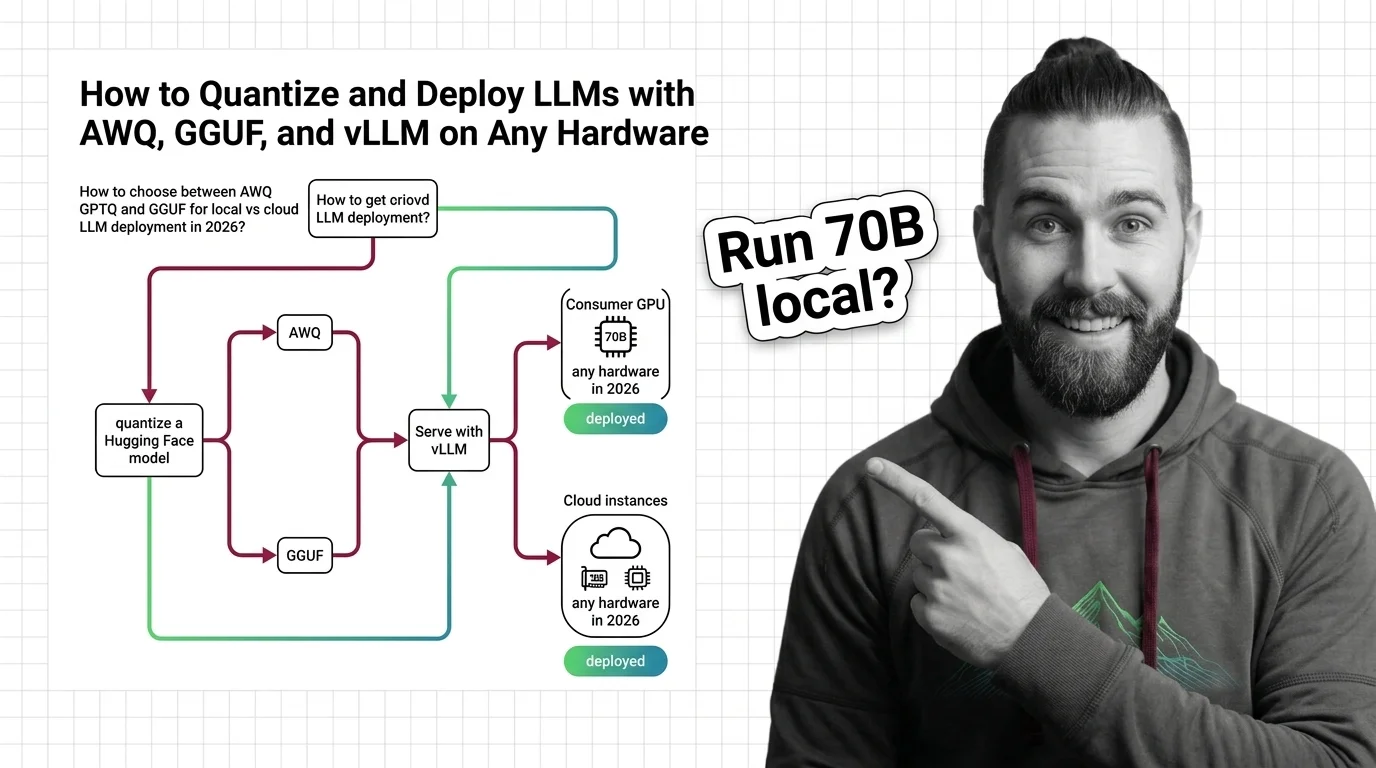
Table of Contents
TL;DR
- Match format to hardware: AWQ for GPU serving, GGUF for CPU and edge, FP8 for datacenter cards
- The old tooling is dead — AutoAWQ and AutoGPTQ are deprecated; llm-compressor and GPTQModel replace them
- Quantize once, validate twice — check quality retention and throughput before anything hits production
You download a 70B model. You have a 24 GB GPU. You do the math — 70 billion parameters at 16-bit precision need roughly 140 GB of VRAM. You don’t have 140 GB. Nobody casually has 140 GB. So you search “quantize LLM” and find six different formats, three deprecated libraries, and a Reddit thread from 2024 recommending a tool that no longer exists. This guide fixes that. One decision framework. Current tooling only.
Before You Start
You’ll need:
- A model from Hugging Face (any architecture — Llama, Qwen, Mistral)
- An AI coding tool (Claude Code, Cursor, or Codex) for generating your quantization scripts
- A clear picture of your Inference target — GPU model, VRAM, or CPU-only
This guide teaches you: how to match Quantization format to hardware, specify the constraints, build the pipeline, and validate quality before deployment.
The VRAM Wall
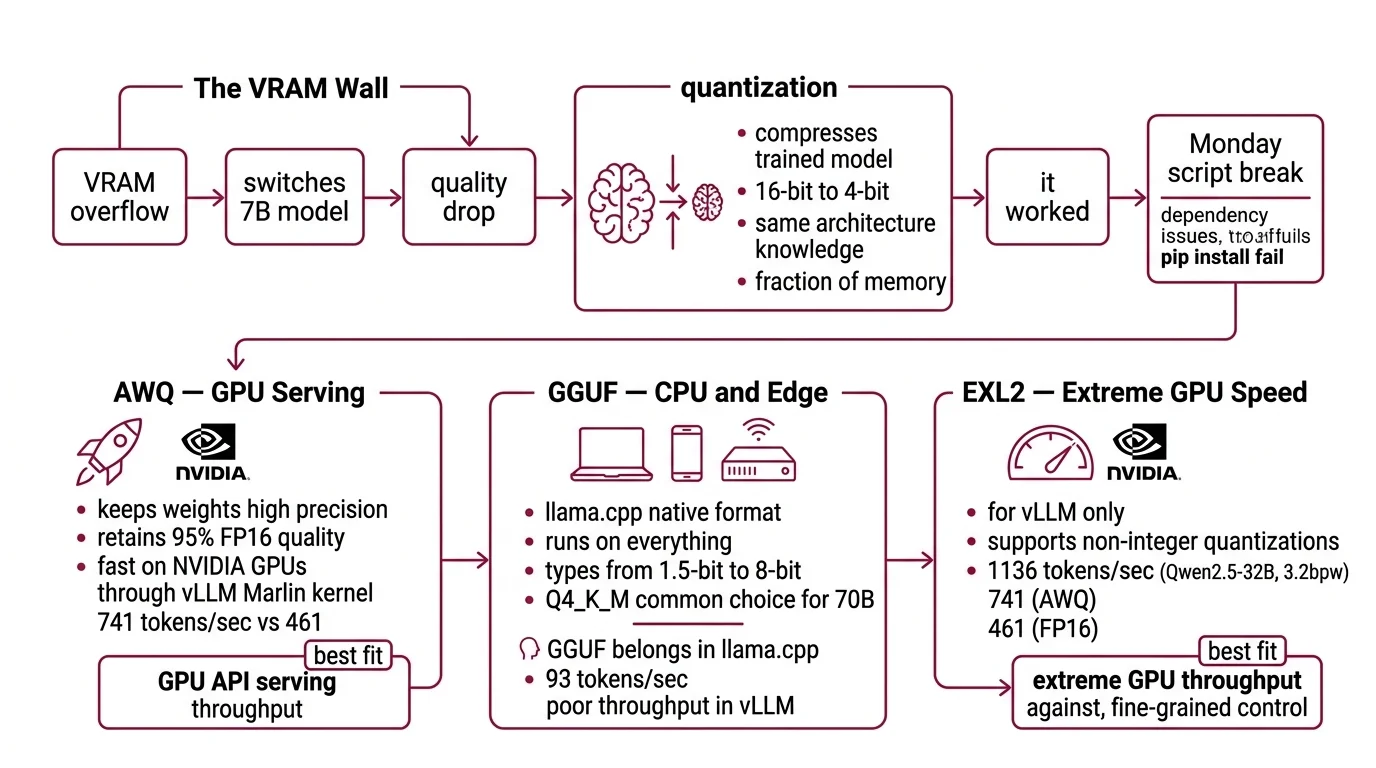
Here’s the failure mode I see every week. Developer grabs a 70B model because the benchmarks look great. Loads it in FP16. VRAM overflow. Switches to a 7B model instead — and wonders why the output quality dropped off a cliff.
The fix wasn’t a smaller model. The fix was a smaller number format. Post Training Quantization compresses a trained model’s weights from 16-bit floats down to 4-bit integers. Same architecture. Same learned knowledge. A fraction of the memory.
It worked on Friday. On Monday, the quantization script broke because AutoAWQ got deprecated and the pip install started failing silently.
Step 1: Match Format to Your Hardware
Three formats matter in 2026. Each one fits a different deployment target. Pick the wrong one and you end up re-quantizing — or worse, serving through an engine that doesn’t support the format well.
Awq — GPU Serving
AWQ (Activation-Aware Weight Quantization) keeps the weights that matter most at higher precision. It retains roughly 95% of FP16 quality (PremAI Blog) and runs fast on NVIDIA GPUs through vLLM’s Marlin kernel — 741 tokens per second on a Qwen2.5-32B model, compared to 461 for the FP16 baseline (JarvisLabs Docs). Those benchmarks come from JarvisLabs testing on specific hardware; your numbers will vary by model and GPU.
Best fit: GPU-based API serving where throughput per dollar is the metric.
GGUF — CPU and Edge
GGUF is the native format for llama.cpp. It runs on everything — Apple Metal, NVIDIA CUDA, AMD HIP, Intel SYCL, Vulkan, and plain CPU (llama.cpp GitHub). Quantization types range from 1.5-bit through 8-bit. Q4_K_M is the common choice for 70B models.
Best fit: laptops, phones, edge servers, anywhere without a datacenter GPU.
One thing to know: vLLM can load GGUF files, but the throughput is poor — 93 tokens per second in the same JarvisLabs benchmark. GGUF belongs in llama.cpp, not vLLM.
GPTQ — Legacy GPU Quantization
GPTQ quantizes by minimizing layer-wise reconstruction error. It retains roughly 90% of FP16 quality (PremAI Blog). Pre-quantized GPTQ models are still widely available on Hugging Face, but AWQ has overtaken it for new quantization work — better quality retention, faster Marlin kernel support.
Best fit: when you already have a pre-quantized GPTQ model and don’t want to re-quantize.
Fp8 — Datacenter Cards
FP8 needs no calibration data for dynamic quantization and can cut latency by up to 2x on H100 and L40S cards (Red Hat Developer). If you have datacenter hardware, this is the simplest path — no calibration dataset, no quality tuning, just load and serve.
Where Does Bitsandbytes Fit?
bitsandbytes (v0.49.2) is the standard library for NF4 quantization during QLoRA fine-tuning. It’s not a serving format. Use it when you’re fine-tuning with limited VRAM, not when you’re deploying.
Step 2: Lock Down the Quantization Spec
Before you generate any quantization script, your AI coding tool needs these constraints pinned down. Miss one and the generated code will guess — confidently, quickly, and sometimes wrong.
Context checklist:
- Source model: architecture, parameter count, Hugging Face repo ID
- Target format: AWQ, GPTQ, GGUF, or FP8
- Target bit width: 4-bit (most common), 8-bit, or FP8
- Hardware: GPU model and VRAM, or CPU-only
- Serving engine: vLLM (GPU) or llama.cpp (CPU/edge)
- Calibration data: required for AWQ and GPTQ (not for FP8 dynamic or GGUF)
- Quantization tool: llm-compressor for AWQ, GPTQModel for GPTQ, llama.cpp for GGUF
The Spec Test: If your context says “quantize this model” without specifying the serving engine, your AI tool will pick one. It might pick the wrong one. A GGUF quantized for llama.cpp won’t run efficiently on vLLM — and vice versa. Name the engine first.
Step 3: Build the Quantization and Serving Stack
The build order depends on your format choice. Here’s the sequence for each path.
Path A — AWQ on vLLM:
- Install llm-compressor (v0.10.0.1) — the official vLLM quantization toolkit
- Prepare a representative calibration set from your domain
- Run AWQ quantization with llm-compressor
- Load the quantized model in vLLM (v0.18.0) with Marlin kernel enabled
Path B — GGUF on llama.cpp:
- Install llama.cpp (current build: b8533, March 2026)
- Convert the Hugging Face model to GGUF v3 format using the conversion script
- Quantize to your target bit width (Q4_K_M for 70B, Q5_K_M for quality-sensitive tasks)
- Serve with
llama-server(note: the oldserverbinary name is deprecated)
Path C — GPTQ on vLLM:
- Install GPTQModel (v5.8.0) — the active successor to AutoGPTQ
- Prepare calibration data
- Run GPTQ quantization
- Load in vLLM or via Hugging Face Transformers (which now requires GPTQModel as the backend)
For each component, specify:
- What it receives (model path, calibration data path)
- What it returns (quantized model directory, format metadata)
- What it must NOT do (modify original weights, skip validation)
- How to handle failure (calibration data mismatch, VRAM overflow during quantization)
Security & compatibility notes:
- AutoAWQ (DEPRECATED): Use llm-compressor (v0.10.0.1) for AWQ quantization. AutoAWQ is no longer maintained.
- AutoGPTQ (ARCHIVED April 2025): Use GPTQModel (v5.8.0) as drop-in replacement.
- HF Transformers GPTQ: AutoGPTQ backend removed. Must use GPTQModel.
- llama.cpp binaries: Names changed —
main->llama-cli,server->llama-server,quantize->llama-quantize.- vLLM V0 engine: V0 engine deprecated; code removal started in v0.10.
Step 4: Prove the Quantized Model Works
Two things to validate: quality didn’t collapse, and throughput meets your target.
Validation checklist:
- Run a perplexity benchmark on your evaluation set — failure looks like: perplexity degrades noticeably compared to FP16 baseline
- Measure tokens per second on your target hardware — failure looks like: throughput below your serving SLA
- Test edge cases from your domain — failure looks like: the model handles common queries fine but breaks on specialized terminology
- Check VRAM under load — failure looks like: OOM crashes at peak concurrent requests. A 70B model at Q4_K_M needs roughly 42 GB of VRAM at 8K context (SitePoint), and that estimate climbs with longer context lengths because KV cache grows with every additional token
Common Pitfalls
| What You Did | Why It Failed | The Fix |
|---|---|---|
| Used AutoAWQ from a 2024 tutorial | Library is deprecated, install fails silently | Switch to llm-compressor |
| Quantized to GGUF and served with vLLM | vLLM’s GGUF support is unoptimized (93 tok/s) | Serve GGUF with llama.cpp instead |
| Skipped calibration data for AWQ | Quality drops below acceptable threshold | Prepare a representative calibration set from your domain |
| Ran a 70B Q4 model on a single 24 GB GPU | Weights fit, but KV cache overflows at context length | Use 48 GB GPU or split across 2x24 GB |
Pro Tip
The format you pick determines everything downstream — serving engine, hardware requirements, scaling path. Make that decision first and work backward. Most wasted time comes from quantizing a model and then discovering the serving engine doesn’t handle the format well.
Frequently Asked Questions
Q: How to choose between AWQ GPTQ and GGUF for local vs cloud LLM deployment in 2026?
A: AWQ for cloud GPU serving — best throughput on NVIDIA via vLLM’s Marlin kernel. GGUF for local and edge — runs natively on CPU and Apple Silicon through llama.cpp. GPTQ if you already have a pre-quantized model. The deprecated tooling (AutoAWQ, AutoGPTQ) is gone — use llm-compressor and GPTQModel.
Q: How to run a 70B parameter model on a consumer GPU using quantization?
A: Quantize to 4-bit — Q4_K_M for GGUF, INT4 for AWQ. A 70B model at that precision needs roughly 42 GB including KV cache at 8K context. A single 24 GB card won’t fit it — use a 48 GB card or split across two GPUs with tensor parallelism.
Q: How to quantize a Hugging Face model to AWQ or GGUF and serve it with vLLM step by step?
A: For AWQ: install llm-compressor, prepare calibration samples, quantize, then load in vLLM with Marlin enabled. For GGUF: convert with llama.cpp’s script, quantize, serve with llama-server — not vLLM. vLLM’s GGUF throughput is significantly lower than llama.cpp native performance. Match format to engine before starting.
Your Spec Artifact
By the end of this guide, you should have:
- A format decision (AWQ, GPTQ, GGUF, or FP8) matched to your specific hardware
- A quantization constraint checklist with every parameter specified
- Validation criteria: perplexity threshold, throughput target, VRAM budget
Your Implementation Prompt
Paste this into Claude Code, Cursor, or Codex after filling in your values. Every bracketed placeholder maps to a decision from Steps 1-4.
You are building a quantization and serving pipeline for an LLM.

## Model
- Source: [Hugging Face repo ID, e.g., meta-llama/Llama-3.3-70B-Instruct]
- Parameters: [parameter count, e.g., 70B]
- Architecture: [model family, e.g., Llama 3.3]

## Quantization
- Target format: [AWQ | GPTQ | GGUF | FP8]
- Bit width: [4-bit | 8-bit | FP8]
- Quantization tool: [llm-compressor for AWQ | GPTQModel for GPTQ | llama.cpp for GGUF | vLLM native for FP8]
- Calibration data: [path to calibration dataset, or "none" for FP8/GGUF]
- Calibration samples: [sample count for AWQ/GPTQ, or "n/a" for FP8/GGUF]

## Hardware
- GPU: [model and VRAM, e.g., RTX 4090 24GB]
- Multi-GPU: [yes/no, tensor parallelism count]
- CPU-only fallback: [yes/no]

## Serving
- Engine: [vLLM for AWQ/GPTQ/FP8 | llama-server for GGUF]
- Max concurrent requests: [number]
- Context length: [e.g., 8192]

## Constraints
- Do NOT use AutoAWQ (deprecated) or AutoGPTQ (archived)
- Do NOT serve GGUF with vLLM — use llama-server
- Validate perplexity against FP16 baseline (max [X]% degradation)
- Validate throughput: minimum [Y] tokens/second on target hardware
- VRAM budget: must stay under [Z] GB including KV cache at target context length

Generate the quantization script, serving configuration, and validation script.
Ship It
You now have a decision framework that starts with hardware and works backward to format, tooling, and validation. Next time someone says “just quantize it,” you know the three questions to ask first: what GPU, what serving engine, and what quality floor. The format choice comes after those answers — not before.
AI-assisted content, human-reviewed. Images AI-generated. Editorial Standards · Our Editors