Building a Text-to-3D Pipeline with TRELLIS: From Text Prompt to Game Engine Export in 2026
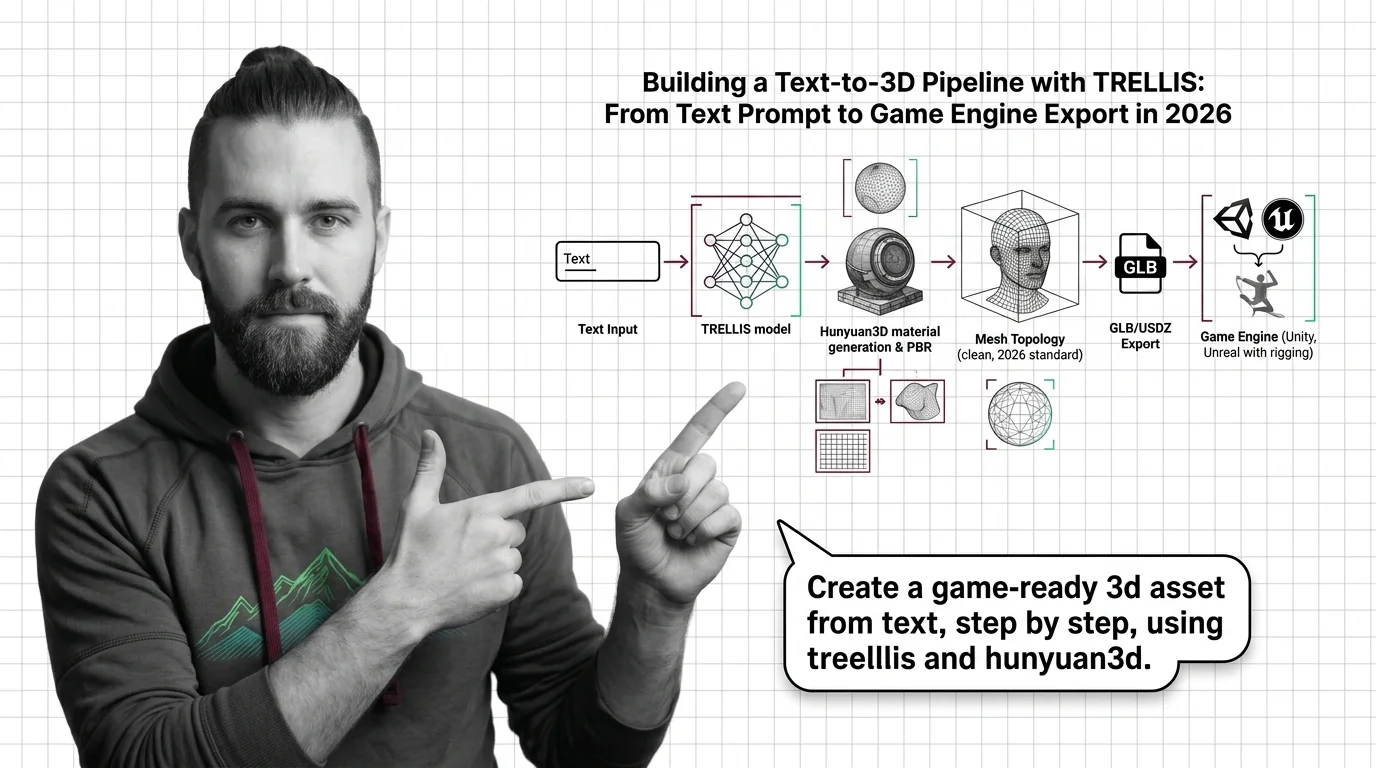
TL;DR
- TRELLIS generates GLB and PLY from text prompts — but its spec requirements (CUDA version, VRAM, OS) need to match before you touch a single prompt.
- PBR materials don’t come from TRELLIS. You need a second model (Hunyuan3D-2.1) that takes your TRELLIS image output and produces albedo, roughness, and metallic maps — combined, the pipeline requires production-grade GPU hardware.
- Unity and Unreal each have a different GLB story. Unity’s glTFast package handles it cleanly; Unreal’s old glTF importer is being phased out in favor of the Interchange framework.
You prompt the model. A 3D object appears in the preview window. You export the GLB and drag it into your game engine — and the mesh explodes, the textures come in flat gray, and the rig is a disaster. Three attempts. Same broken result. The prompt wasn’t the problem. The pipeline spec was.
Text-to-3D generation has moved fast enough that you can now get credible geometry from a text description in under a minute. What hasn’t simplified is everything after the generation step: PBR baking, mesh cleanup, and the engine-specific import path that differs meaningfully between Unity and Unreal. This guide walks you through each stage so your AI-generated assets land in the engine ready to use, not ready to debug.
Before You Start
You’ll need:
- A Linux machine with 16 GB VRAM minimum (TRELLIS is tested on A100 and A6000 hardware), CUDA 11.8 or 12.2
- Access to Hunyuan3D-2.1 for PBR baking (separate pipeline, 29 GB VRAM combined — production or cloud GPU required)
- Unity 2022.3+ with Package Manager access, or Unreal Engine 5.3+
- Working knowledge of PBR Materials (albedo, roughness, metallic maps) and UV Mapping
- Understanding of what a Gaussian Splatting or NeRF representation is — TRELLIS outputs both and you’ll need to pick the right one
This guide teaches you: How to specify each stage of the text-to-3D pipeline — generation, material baking, and engine import — so your constraints reach the AI tool rather than getting swallowed by defaults.
The Gap Nobody Warns You About
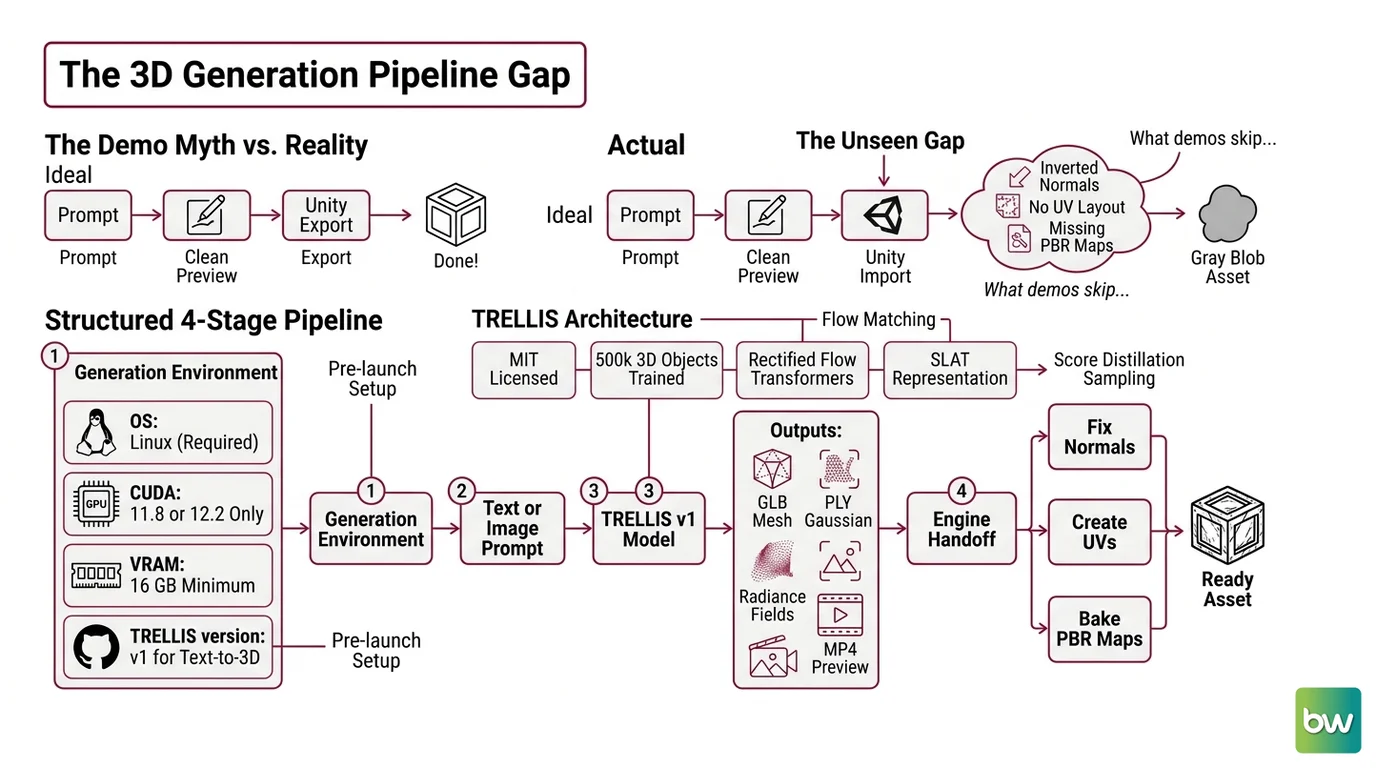
Here’s what the demos skip. You paste a text prompt. The 3D preview looks clean — good silhouette, reasonable geometry. You export GLB and open it in Unity. The normals are inverted. The mesh has no UV layout. The PBR maps are absent because TRELLIS doesn’t bake them by default. The object is a gray blob.
It worked in the browser preview. In the engine, three things were never specified.
The actual pipeline has four distinct stages, each with its own failure modes. Collapsing them into “prompt → export → done” is what breaks the handoff.
Step 1: Specify the Generation Environment
TRELLIS (TRELLIS GitHub) is MIT-licensed, accepts text and image prompts, runs up to a 2B parameter model trained on 500,000 diverse 3D objects, and produces GLB meshes, PLY Gaussian files, radiance fields, and MP4 preview renders. That’s the good news.
The environment constraints are where most setups fail before a single prompt runs.
Your generation environment needs:
- OS: Linux. Windows setup is partially documented but untested — if you’re on Windows, you’re debugging the environment, not the model.
- CUDA: 11.8 or 12.2 specifically. Other versions cause silent failures at the diffusion step.
- VRAM: 16 GB minimum. TRELLIS was tested on A100 and A6000 hardware. An RTX 3090 (24 GB) covers this; an RTX 3060 (12 GB) does not.
- TRELLIS version: The text-to-3D capability lives in TRELLIS v1 (
github.com/microsoft/TRELLIS). The TRELLIS.2 repo is a separate 4B parameter model — image-to-3D only, no text input. Don’t conflate them.
The TRELLIS architecture uses a SLAT (Structured LATent) representation with Rectified Flow Transformers (Microsoft Research). The Score Distillation Sampling approach you may have seen in earlier text-to-3D work isn’t TRELLIS’s mechanism — it uses flow matching across a structured latent space, which is why it can produce consistent Mesh Topology that earlier SDS methods struggled with.
Environment checklist:
- CUDA version confirmed (11.8 or 12.2 — check with
nvcc --version) - VRAM confirmed at 16 GB minimum
- Linux host (not WSL — native Linux)
- TRELLIS repo cloned from
github.com/microsoft/TRELLIS(not TRELLIS.2) - Output format decision made: GLB for mesh import, PLY if you need the Gaussian representation for 3D reconstruction workflows
The Spec Test: If you clone the wrong repo or run on the wrong CUDA version, TRELLIS will fail at initialization or produce malformed outputs without a clear error message. Confirm your environment before writing a single prompt.
Step 2: Define Your Prompt Constraints
Text-to-3D prompts fail for the same reason text-to-image prompts fail: you specified the subject, not the requirements.
TRELLIS was added text-to-3D support in March 2025 (TRELLIS GitHub). The model has strong priors for certain object categories — props, hard-surface objects, stylized characters — and weaker priors for organic forms with complex topology.
Your prompt spec must include:
- Subject with orientation: “A wooden barrel, vertical orientation, closed lid” rather than “a barrel.” Orientation affects how TRELLIS samples the view distribution.
- Style signal: “game-ready low-poly,” “realistic PBR,” or “stylized cartoon” — these shift the geometry density and surface detail level.
- What’s NOT in the scene: If your prompt implies a context (a barrel on a dock, a sword in someone’s hand), the model may generate parts of that context. Isolate the object explicitly.
- Geometry complexity target: Complex organic meshes with non-planar surfaces often require multiple generation attempts. Budget for that in your pipeline spec.
Prompt constraint checklist:
- Object isolated (no environment context)
- Orientation specified
- Style registered (realistic, stylized, low-poly)
- Complexity matched to your VRAM budget
- Output format decided before generation (GLB for engine import, PLY for Gaussian workflows)
After generation, TRELLIS exports GLB directly. That GLB contains geometry and basic vertex colors — but no PBR material maps. That’s the next stage.
Step 3: Bake PBR Materials with Hunyuan3D-2.1
Production-ready PBR materials require a second model. TRELLIS gives you geometry. Hunyuan3D-2.1 (arXiv 2506.15442) gives you albedo, metallic, and roughness maps baked against the Disney Principled BRDF model — the material standard that Unity and Unreal both understand natively.
The pipeline here is: TRELLIS generates a mesh → you render a reference image from that mesh → Hunyuan3D-2.1 takes the image and synthesizes PBR maps for the mesh’s UV space.
Two important constraints to specify before you set this up:
First, Hunyuan3D-2.1 is image-to-3D, not text-to-3D. You cannot pipe a text prompt directly into it. The input is a rendered or photographed image of the object. Your TRELLIS-generated GLB is the intermediate — render it from a neutral angle, feed that image to Hunyuan3D-2.1.
Second, the VRAM requirement is substantial. Shape generation alone (Hunyuan3D-DiT) needs 10 GB. Texture synthesis (Hunyuan3D-Paint) needs 21 GB. The combined pipeline needs 29 GB (Hunyuan3D-2.1 GitHub). That’s beyond the 24 GB cap on consumer RTX 3090 and RTX 4090 cards. This is a production or cloud GPU requirement — plan accordingly.
PBR baking checklist:
- Reference image rendered from neutral angle (45° above, front-facing)
- Hunyuan3D-2.1 environment installed: Python 3.10+, PyTorch 2.5.1+cu124
- GPU confirmed at 29 GB VRAM for the combined shape + texture pipeline
- Output maps verified: albedo (base color), metallic, roughness — all three required for correct PBR rendering in Unity/Unreal
- Map resolution matched to your target LOD (1024×1024 for background props, 2048×2048 for hero assets)
Compatibility note: Hunyuan3D versioning is fast — 2.0 (January 2025), 2.1 (June 2025), 2.5 (June 2025), 3.0 (February 2026), 3.1 available via Replicate. The instructions here target 2.1. If you’re running 3.x, verify the input/output contract — the core image-to-3D constraint and PBR map set are the same, but environment requirements may differ.
Step 4: Import to Unity or Unreal Engine
The GLB + PBR map bundle from your pipeline lands differently in Unity versus Unreal. Both support GLB, but the import path matters — and the mesh cleanup question cuts across both.
Unity path: Install com.unity.cloud.gltfast (v6.0.1) via Package Manager — this is the official Unity package (Unity Docs). Once installed, drag the .glb file into the Assets panel. Unity auto-imports the mesh and any embedded textures. For PBR maps not embedded in the GLB, create a material in your target render pipeline (URP or HDRP) and assign the albedo, roughness, and metallic textures manually. PBR map remapping behavior differs between Built-in, URP, and HDRP pipelines — verify your render pipeline before assuming maps are automatically applied.
Rigging: The imported GLB mesh is static. TRELLIS produces no skeletal data. Run the mesh through an auto-rigging tool (Mixamo, AccuRig) or rig it manually before animating.
Unreal Engine path: The original Datasmith glTF Importer plugin is scheduled for removal — the current path is through the Interchange framework (Epic Docs). Enable the “Datasmith Interchange” plugin in your project, then import your GLB via the Interchange import dialog. For skeletal meshes and animations, FBX remains the safer choice in Unreal (Epic Docs). Use GLB via Interchange for static meshes; the skeletal mesh Interchange pipeline is still stabilizing.
Compatibility note — Unreal: The original Datasmith glTF Importer plugin is being deprecated. Enable the “Datasmith Interchange” plugin for current GLB imports. Do not rely on the old importer path for new projects (Epic Docs).
Mesh cleanup before import: Hunyuan3D-2.1’s shape model produces watertight geometry, but AI-generated meshes still carry non-manifold edges and n-gons that break rigs and cause artifacts in both engines. Run the output through Blender’s Mesh Clean-up tools (Remove Doubles, Limited Dissolve) before bringing it into the engine. One cleanup pass per hero asset is not optional — it’s the last spec step.
Import checklist:
- Unity:
com.unity.cloud.gltfastv6.0.1 installed via Package Manager - Unreal: Datasmith Interchange plugin enabled (old glTF plugin disabled)
- Mesh cleanup: Remove Doubles + Limited Dissolve run in Blender
- UVs: non-overlapping UV layout confirmed before texture assignment
- Rigging plan confirmed: static mesh or skeletal (auto-rigger named in spec)
Common Pitfalls
| What You Did | Why AI Failed | The Fix |
|---|---|---|
| Used TRELLIS.2 for text-to-3D | TRELLIS.2 is image-to-3D only — no text input | Use TRELLIS v1 from github.com/microsoft/TRELLIS |
| Ran TRELLIS on CUDA 12.6 | Only CUDA 11.8 and 12.2 are supported | Reinstall matching CUDA version before running |
| Piped text prompt directly into Hunyuan3D | Hunyuan3D-2.1 is image input only | Render a reference image from TRELLIS output first |
| Imported GLB with old Unreal glTF plugin | Plugin is deprecated, Interchange is the current path | Enable Datasmith Interchange plugin in UE5 |
| Expected PBR maps from TRELLIS output | TRELLIS outputs geometry + vertex color, no PBR maps | Add Hunyuan3D-2.1 as a second baking stage |
| Skipped mesh cleanup before rigging | AI mesh has n-gons and non-manifold edges that break rigs | Run Blender cleanup pass before import |
Pro Tip
Specify your target render pipeline before you generate anything. Whether you’re shipping to Unity URP, Unity HDRP, or Unreal’s Lumen system changes which PBR map set matters and which texture resolutions make sense. That decision should be in your pipeline spec at Step 1 — not discovered when the gray sphere appears in the engine at Step 4. The AI tool doesn’t know your render pipeline. You have to tell it before it generates anything, because the output format and material requirements trace back to that choice.
Frequently Asked Questions
Q: How to build a text-to-3D pipeline step by step using TRELLIS and export to GLB? A: Set up TRELLIS v1 on a Linux machine with CUDA 11.8 or 12.2 and 16 GB VRAM minimum. Write a prompt with the object isolated, orientation specified, and a style signal. TRELLIS outputs GLB directly after generation. Watch out for the TRELLIS vs TRELLIS.2 confusion — only v1 takes text input; TRELLIS.2 is image-only and lives in a separate repository.
Q: How to import and rig text-to-3D outputs in Unity and Unreal Engine?
A: In Unity, use com.unity.cloud.gltfast v6.0.1 via Package Manager, then drag-and-drop the GLB. In Unreal, enable the Datasmith Interchange plugin — the old glTF importer is deprecated. Rigging requires a separate step: AI-generated meshes from TRELLIS contain no skeletal data, so run through an auto-rigger like Mixamo before import or rig manually. Static meshes import cleanly; skeletal mesh pipelines are still maturing on the Unreal Interchange side.
Q: How to use Hunyuan3D for PBR material generation and production-clean mesh topology? A: Hunyuan3D-2.1 requires a rendered reference image as input — render your TRELLIS mesh from a neutral angle first. The combined shape + texture pipeline needs 29 GB VRAM, which puts it firmly in cloud or workstation GPU territory. For topology cleanup before the PBR materials step, Blender’s Limited Dissolve and Remove Doubles reduce n-gon density without destroying the silhouette. One cleanup pass per hero asset is the minimum for production use.
Your Spec Artifact
By the end of this guide, you should have:
- A generation environment checklist (CUDA version, VRAM, OS, TRELLIS repo — v1 not v2) with a confirmed output format decision (GLB for engines, PLY for Gaussian workflows)
- A PBR baking spec (Hunyuan3D-2.1 input type, VRAM budget, map set: albedo + metallic + roughness, target resolution per asset tier)
- An engine import checklist (Unity: glTFast package + render pipeline; Unreal: Interchange plugin confirmed active) with a rigging plan for skeletal assets
Your Implementation Prompt
Use this prompt in your AI coding tool (Claude Code, Cursor, or Codex) when you need to automate or document the pipeline handoff steps. Fill in the bracketed values with your project’s specific constraints before running.
You are helping me specify a text-to-3D asset pipeline. I need a complete step-by-step
pipeline spec document for my team.

Pipeline stages:

1. GENERATION (TRELLIS v1)
   - Target object: [describe object, style, orientation]
   - Render pipeline target: [Unity URP / Unity HDRP / Unreal Lumen / other]
   - Output format: [GLB for engine import / PLY for Gaussian workflow]
   - VRAM available: [confirm ≥ 16 GB]
   - CUDA version: [confirm 11.8 or 12.2]

2. PBR BAKING (Hunyuan3D-2.1)
   - Reference image: [how it will be rendered from TRELLIS output]
   - VRAM budget: [confirm ≥ 29 GB for combined shape + texture]
   - Map set required: albedo, metallic, roughness
   - Target resolution per asset tier: [hero: 2048×2048 / prop: 1024×1024]

3. MESH CLEANUP (Blender)
   - Cleanup operations: [Remove Doubles, Limited Dissolve, normal check]
   - Asset tier: [hero / background prop] — determines cleanup depth

4. ENGINE IMPORT
   - Target engine: [Unity / Unreal]
   - If Unity: confirm com.unity.cloud.gltfast v6.0.1 installed
   - If Unreal: confirm Datasmith Interchange plugin enabled
   - Rigging requirement: [static mesh / skeletal — if skeletal, name auto-rigger]

5. VALIDATION
   - Normals: all outward-facing
   - UV layout: non-overlapping for texture maps
   - PBR maps: assigned to correct material slots in target render pipeline
   - Poly count: within [specify budget] for target LOD

Generate a spec document covering each stage, with failure symptoms for each check
in step 5.
Ship It
You now have four distinct stages, each with its own hardware spec, input contract, and failure mode. The generation environment, the PBR baking step, the mesh cleanup pass, and the engine import path — these don’t compose automatically. Specify each one, confirm the handoffs, and the gray blob in the viewport becomes an engine-ready asset.
Deploy safe, Max.
AI-assisted content, human-reviewed. Images AI-generated. Editorial Standards · Our Editors